Choose a Local AI Model for Your Hardware
Start with the workload and memory budget, not a model leaderboard. A useful local model is one your runtime can load reliably at the context and speed your task actually needs.
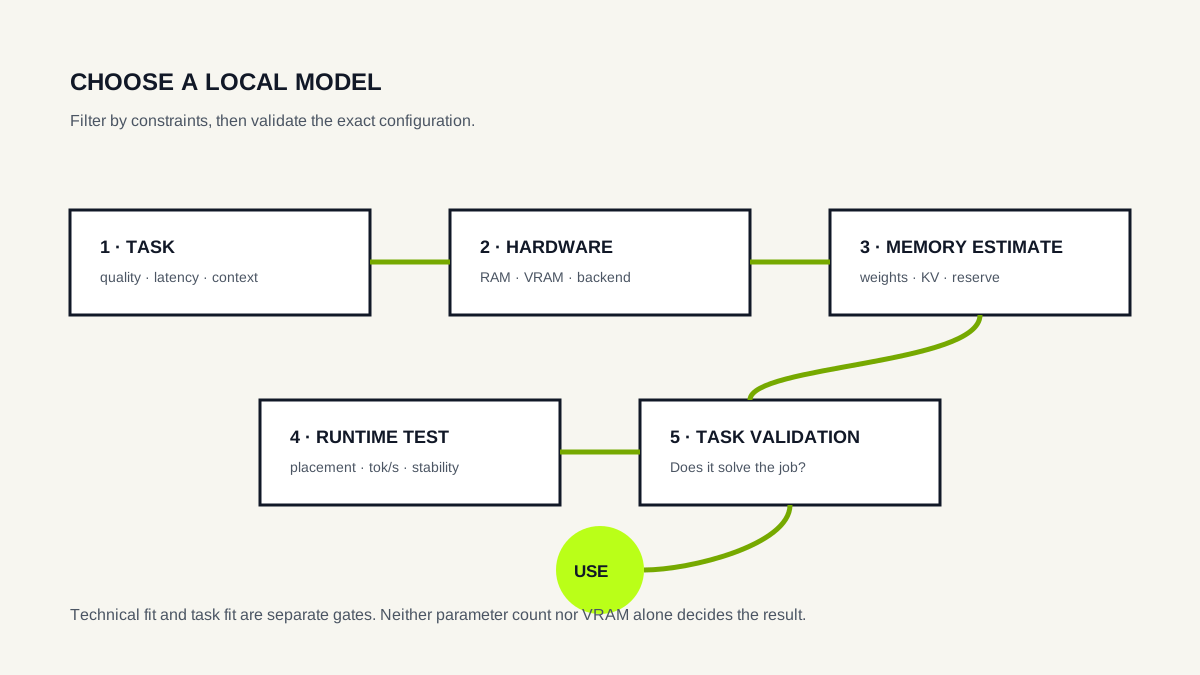
1. Define the task before the model size
Decide what the local model needs to do: short interactive chat, coding assistance, document work, structured extraction, experimentation or another specific workload. The task determines what “good enough” means for quality, latency and context.
A larger model that runs at unusable latency is not automatically a better local choice. Conversely, selecting the smallest model solely because it fits can leave too much task performance on the table. Hardware fit is a constraint, not a quality ranking.
2. Inventory the hardware the runtime can actually use
Record system RAM, GPU model and usable VRAM, CPU, operating system and the intended runtime. Then verify that the runtime supports the relevant hardware backend.
Keep RAM and VRAM separate. System RAM can make CPU inference and partial offload possible, but it does not turn into GPU VRAM. A 32 GB system with a 3 GB GPU still has a 3 GB VRAM constraint for GPU-resident allocations.
3. Estimate weight memory before downloading
Parameter count and weight precision provide a useful first approximation. In a simple dense-weight estimate, parameters × bits / 8 gives the raw storage represented by those weights. Real model artifacts also contain metadata and architecture-specific structures, and runtime memory adds allocations beyond the file itself.
Use the Model Size & Memory Explorer to compare parameter scales and precisions. Once you have a concrete file or Ollama model, use the Local Model Fit Checker to check whether the model is likely to fit your hardware, then switch to the VRAM Calculator when you need a more detailed memory breakdown. Actual runtime measurements remain the final check.
Quantization is one of the main levers for constrained hardware because it reduces weight memory. It can also affect output behavior, so the smallest representation should not automatically be treated as the best representation.
4. Decide whether you need full GPU residency
If the complete configuration fits in VRAM and the backend supports the GPU well, full GPU placement may provide high throughput. If it does not fit, partial offload or CPU execution can still make the model usable.
This changes the selection question from “Does the model file fit in VRAM?” to “Does the complete runtime configuration fit somewhere useful, and is the resulting speed acceptable?”
Read Model Offloading before rejecting a model simply because its runtime footprint exceeds VRAM. If you use Ollama, continue with GPU Offloading in Ollama for the runtime-specific diagnostic workflow.
5. Choose the context you need, not the maximum on the model card
A model's maximum supported context and the active context allocated by a runtime are different values. Larger active contexts can increase memory requirements through context-related state such as the KV cache.
Start with a context appropriate to the workload. A short interactive assistant does not automatically benefit from allocating the largest supported window. Document-heavy or agentic workflows may have stronger context requirements.
The KV Cache guide explains why context consumes runtime memory, while the Context Window guide covers the model-level concept.
6. Validate the final configuration locally
A calculator narrows the search; the runtime is the final test. Load the exact model and record active context, placement, runtime-reported size, generation throughput and cold versus warm behavior.
Then test the task itself. Memory fit and tokens per second do not measure answer quality. A useful decision therefore has two gates: technical fit and task fit.
Task → hardware inventory → model/quantization shortlist → memory estimate → runtime load → placement and throughput → task-quality check.
Example: what 3 GB of VRAM taught us
On the same GTX 1060 3GB test system, E—DOCEO observed two very different configurations. Gemma 3 1B Q4_K_M at active context 4096 was reported by Ollama as 100% GPU and reached a median 66.99 tok/s in Lab #001. Qwen3 4B Q4_K_M at the same active context was reported as 57% CPU / 43% GPU and reached a median 12.16 tok/s in Lab #002.
That is not a quality comparison and does not prove a universal speed ratio. It shows why model selection on constrained hardware needs actual placement and throughput measurements after the memory estimate.